
Set up oXnames email in Outlook for Windows
Connect your business email to new or classic Outlook using secure IMAP and SMTP settings from Knox.
Get the right details ready
Have the full mailbox address and its mailbox password ready. The password may be different from your Knox account password.
Secure oXnames email settings
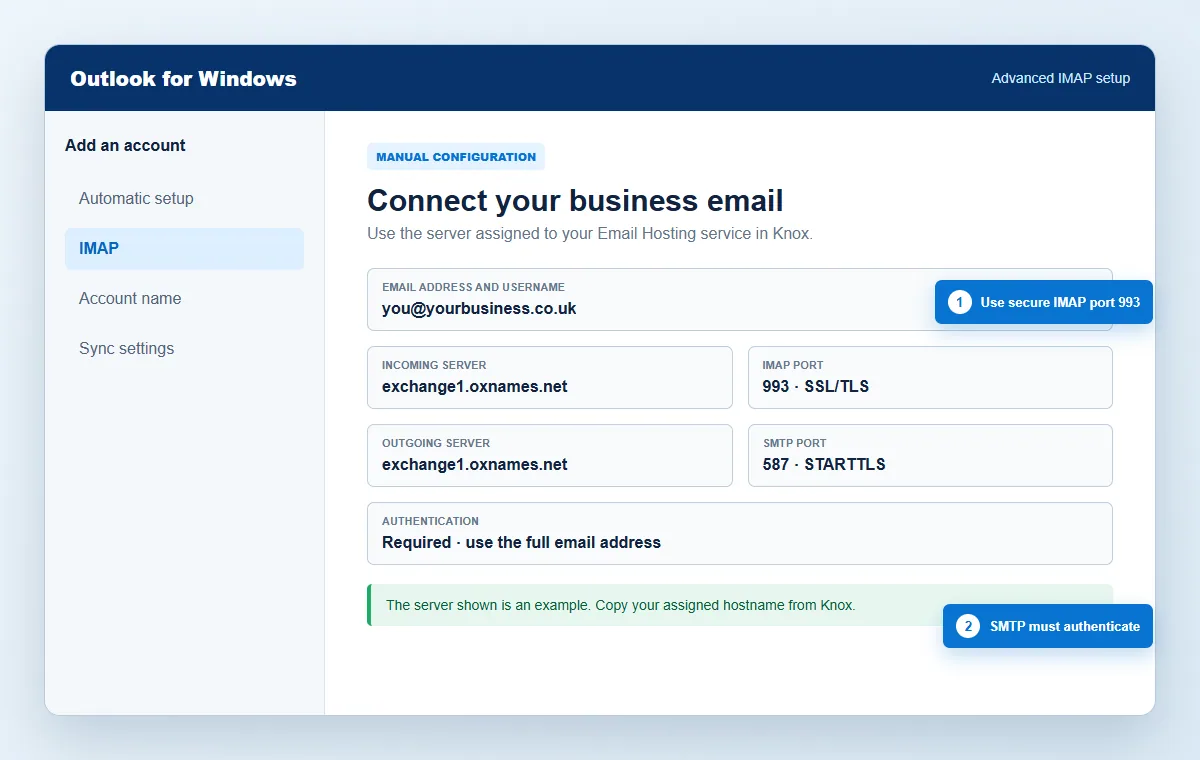
Always use the server assigned to this service in Knox. Do not copy another customer or server hostname.
Security first. Never include account passwords, card details or authentication codes in a support ticket.
Connect the mailbox securely
Work through each step in order. Keep this guide open in another tab if that is easier.
- 1
Find your mailbox settings in Knox
Sign in to Knox, open My services, select your Email Hosting service and choose Connect your email. Keep this page open because it displays the mail server assigned to your account.
- Copy the incoming and outgoing server hostname.
- Confirm the full mailbox address.
- Use the mailbox password, not your Knox login password.
- 2
Start adding the account in Outlook
In new Outlook, open Settings, Accounts and Your accounts, then choose Add account. In classic Outlook, choose File and Add Account.
- Enter the complete email address.
- Choose the manual or advanced setup option if automatic detection does not complete.
- Select IMAP as the account type.
- 3
Enter the incoming IMAP settings
IMAP keeps messages and folders synchronised between Outlook, webmail and your other devices.
- Server: the assigned hostname shown in Knox.
- Port: 993.
- Encryption: SSL/TLS.
- Username: your full email address.
- 4
Enter the outgoing SMTP settings
SMTP authentication must be enabled even when you are using the same network as the server.
- Server: the same assigned hostname shown in Knox.
- Port: 587 with STARTTLS is preferred.
- Alternatively use port 465 with SSL/TLS.
- Username: your full email address and authentication required.
- 5
Finish the connection test
Enter the mailbox password when prompted and allow Outlook to test both incoming and outgoing connections. Do not accept an unexpected certificate warning.
- Check that Outlook reports the account was added.
- Allow the first folder synchronisation to finish.
- Restart Outlook once if the folders do not appear immediately.
- 6
Send and receive a test message
Send a new message from the oXnames mailbox to a different address, then reply to it. This confirms SMTP sending and IMAP receiving independently.
- Confirm the sent message appears in Sent Items.
- Confirm the reply reaches the Inbox.
- Check webmail if Outlook still appears to be synchronising.
Check that it worked
Outlook completes its connection test and begins synchronising folders using IMAP.
Try this before contacting support
Use IMAP rather than POP, the full email address as username, port 993 for incoming mail and the exact SMTP setting displayed in Knox.
Open a support ticket →Answers before you get stuck
Should I choose IMAP or POP?
Choose IMAP. It keeps mail and folders synchronised across Outlook, webmail and your other devices.
Why can Outlook receive but not send?
The outgoing server normally has the wrong port, encryption type or username. SMTP authentication must be enabled and the username must be the full mailbox address.
Can I use port 465 instead of 587?
Yes. Use port 587 with STARTTLS where available, or port 465 with SSL/TLS. Do not combine port 465 with STARTTLS.
Interface wording can change after application updates. See Microsoft Outlook account setup guidance alongside the oXnames settings above.